Are You Getting Too Many Job Seekers in Your B2B Campaigns?
If your Google Ads campaigns are attracting too many job seekers, you’re not alone.
With today’s economic conditions, thousands of people are actively searching for work every day — and many of them are landing on your paid ads by accident.
They might search for terms like:
- “marketing jobs”
- “insurance careers”
- “sales hiring”
- “internships near me”
When your ad appears for these searches, job seekers may click and even fill out a form — but they’ll never become customers. That means your budget is being spent on the wrong audience and your data is being skewed by irrelevant conversions.
So what can you do to limit wasted ad spend and keep job seekers (and even students looking for internships) from burning through your Google Ads budget?
Use Google Segments to Your Advantage
One of the most overlooked tools in Google Ads is Audience Segmentation.
Within your campaigns, you can observe, target, or exclude certain audience types based on their online behavior and demographics.
To stop wasting money on unqualified clicks, you’ll want to exclude two key audience segments:
- People who are actively looking for employment
- Current college students
By excluding these segments, you prevent your ads from showing to people who are browsing for jobs or internships rather than buying your product or service.
How to Exclude Job Seekers and Students from a Google Ads Campaign
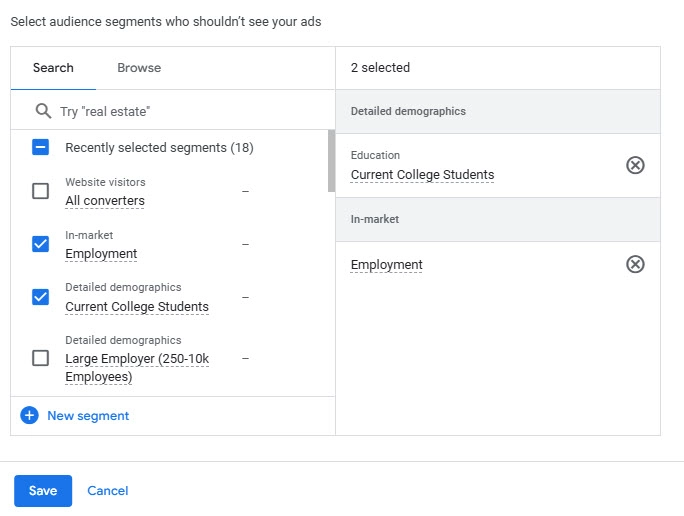
Follow these simple steps:
- Log in to your Google Ads account.
- Navigate to the campaign you want to optimize.
- In the left-hand menu, select “Audiences, Keywords, and content.”
- From the drop-down menu, click “Audiences.”
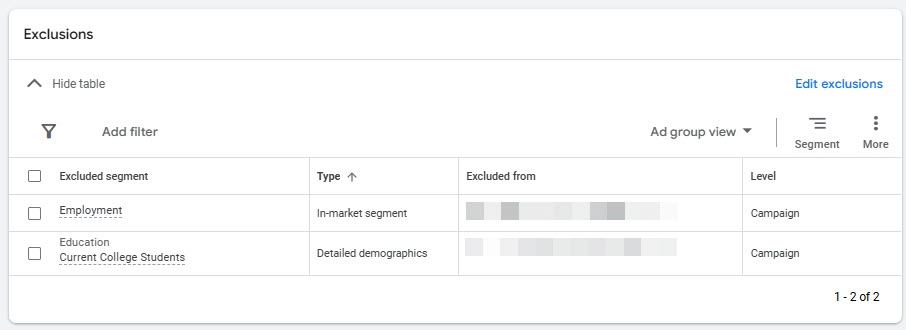
- Scroll down to the “Exclusions” table and click the “Edit exclusions” link in the top-right corner.
- Choose the “Campaign” level so your changes apply across all ad groups.
- Use the search bar to find and add these two audience segments:
- In-market segment: “In Market – Employment”
- Detailed demographic: “Current College Students”
- Save your changes.
That’s it! From now on, Google will automatically prevent your ads from being shown to users in these excluded groups — saving you from wasted clicks and irrelevant leads.
Bonus Tip: Reinforce with Negative Keywords
Even after setting up exclusions, it’s smart to add negative keywords to block job-related searches.
Go to Keywords → Negative Keywords and add terms like:
careers
jobs
hiring
employment
recruiter
internship
vacancies
HR
openings
job application
Apply these across all campaigns (or even account-wide) to ensure your ads only reach the right people.
Wrapping Things Up
Hopefully, this trick helps you eliminate low-value clicks and irrelevant form submissions — so your Google Ads budget can focus on real prospects, not job hunters.
By excluding job seekers and students, you’ll:
- Improve click quality
- Reduce wasted ad spend
- Increase your conversion rate
- Get cleaner campaign data for smarter optimization
Your goal is to reach buyers, not browsers — and this simple exclusion strategy can make an immediate impact on your ad performance.
Ready to Optimize Your Campaigns?
If you suspect your ads are wasting budget on the wrong audiences, Optimuse can help.
We’ll audit your Google Ads account to identify wasted spend, audience mismatches, and optimization opportunities.
Book a free consultation with Optimuse and start turning your ad budget into better leads.